
Download Wireless Transfer App – Fast, Free & Secure File Sharing
Overview
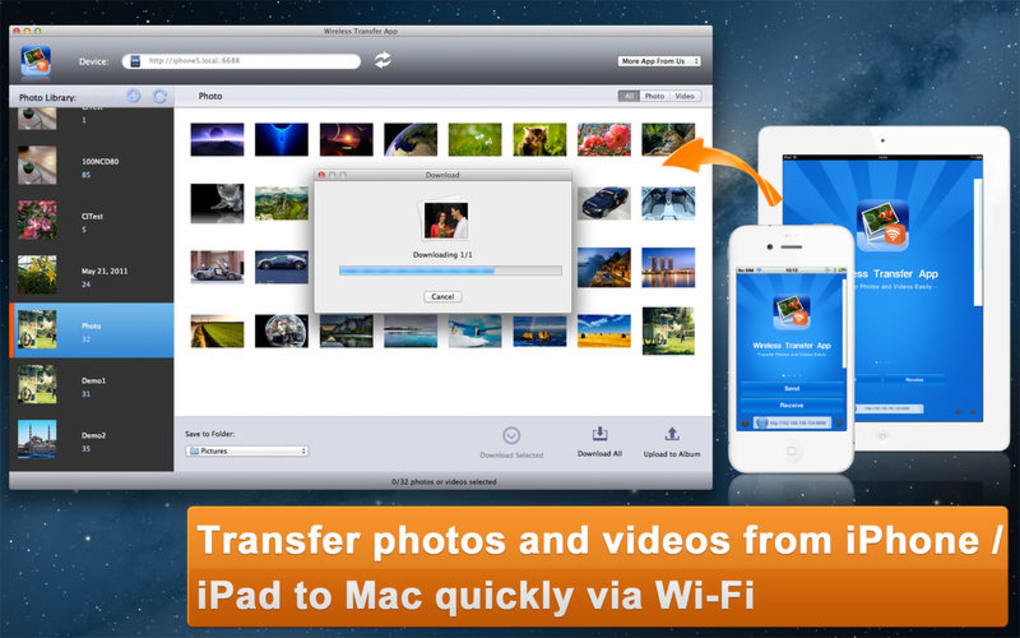
The Wireless Transfer App is a lightweight, cross‑platform solution that lets you move files between your smartphone and PC without cables, cloud services, or third‑party installers. Designed for users who want a simple, secure way to share photos, videos, documents, and app data, the app creates a local Wi‑Fi hotspot or uses your existing network to establish a direct connection. Once paired, you can drag‑and‑drop files from the desktop client or tap a thumbnail on the mobile UI, and the transfer begins instantly.
Because all data travels over your private network, there’s no risk of exposing personal files to external servers. The app also supports batch transfers, automatic folder detection, and real‑time progress tracking, making it an ideal tool for students, professionals, and anyone who regularly switches between a laptop and a mobile device. Whether you’re on Windows, macOS, Android, or iOS, the Wireless Transfer App delivers a consistent experience—no additional drivers, no registration, and absolutely no hidden fees.
Key Features
- Zero‑Configuration Setup: The app automatically detects devices on the same Wi‑Fi network, eliminating the need for manual IP entry.
- Cross‑Platform Compatibility: Works seamlessly on Windows 10/11, macOS 10.15+, Android 6+, and iOS 12+.
- Secure Transfer Protocol: All files are encrypted with AES‑256 during transit, ensuring privacy.
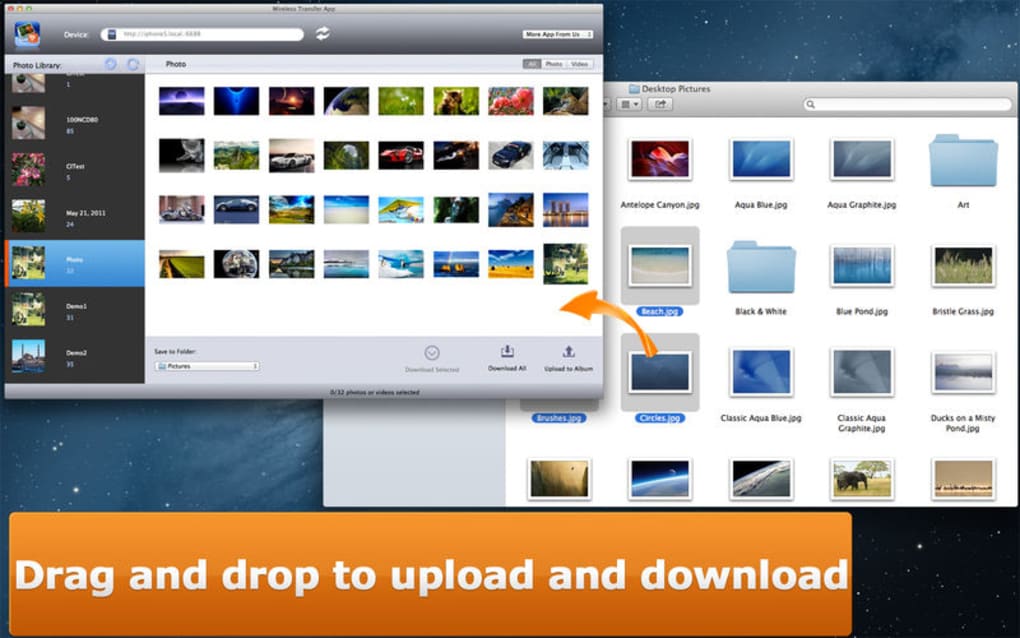
- Drag‑and‑Drop Desktop Client: Transfer files by simply dragging them onto the web‑based interface.
- Batch Transfer & Folder Sync: Select multiple files or entire folders; the app maintains original folder structures.
- Real‑Time Transfer Speed Indicator: Monitor upload and download speeds, estimated time, and progress bar.
- Auto‑Resume Capability: Interrupted transfers automatically resume from the point of failure.
- Lightweight & Free: The app is free to download, with no ads or hidden charges.
Installation & Usage Instructions
Getting started with the Wireless Transfer App is straightforward. Follow these steps to install and begin transferring files:
- Download the Installer: Visit the official website and click the Download for Windows (or macOS, Android, iOS) button. The installer size is under 25 MB, making it quick to download even on slower connections.
- Run the Setup: On Windows, double‑click the
.exefile; on macOS, open the.dmgand drag the app to your Applications folder. Mobile users can install the app directly from Google Play Store or Apple App Store. - Launch the Application: After installation, open the app. It will prompt you to allow local network access—grant permission to enable device discovery.
- Connect Devices: Ensure both your PC and mobile device are on the same Wi‑Fi network. The desktop client will display a QR code; scan it with the mobile app, or manually enter the short code shown.
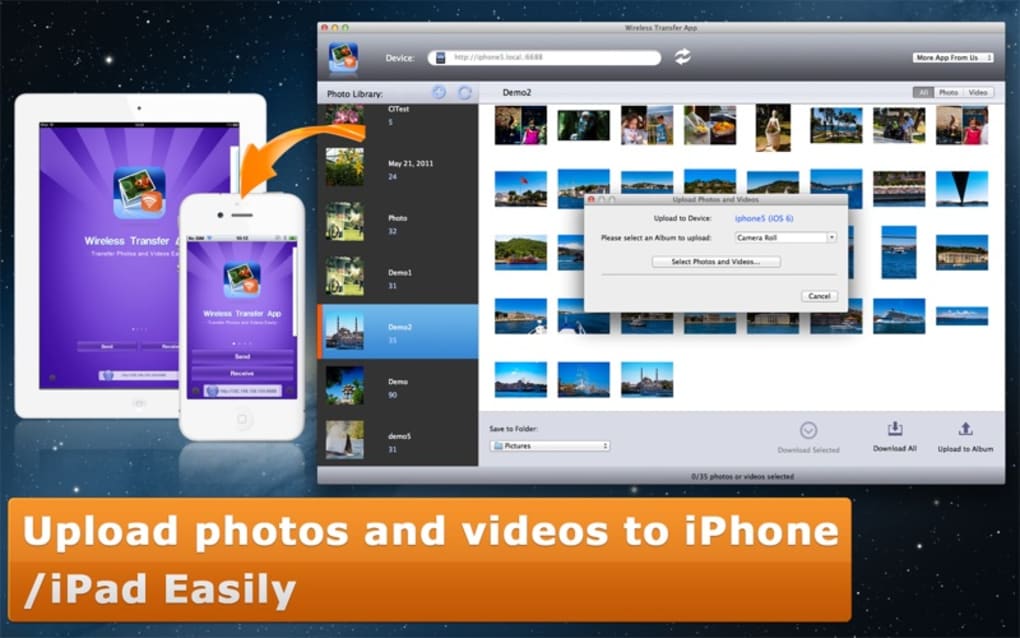
- Select Files: On your phone, tap the Send Files button, browse your gallery or file manager, and select the items you wish to transfer. On the desktop, you can drag files onto the browser window or use the Upload button.
- Monitor Transfer: A progress bar will appear on both devices, showing speed and remaining time. Once completed, a notification confirms successful delivery.
- Optional Settings: Visit the Settings tab to enable auto‑resume, change the default transfer folder, or set a custom password for extra security.
The entire process typically takes less than a minute for small files and scales efficiently for larger media libraries. Because the app runs locally, you won’t consume any mobile data, making it ideal for bandwidth‑constrained environments.
Compatibility and System Requirements
The Wireless Transfer App supports the following operating systems and versions:
- Windows: 10, 11 (64‑bit) – requires .NET Framework 4.7 or higher.
- macOS: 10.15 Catalina and later – requires macOS Gatekeeper to allow unsigned apps (can be enabled in Security & Privacy settings).
- Android: 6.0 Marshmallow and newer – requires at least 2 GB RAM and Wi‑Fi or hotspot capability.
- iOS: 12.0 and later – works on iPhone, iPad, and iPod Touch with Wi‑Fi.
The app is optimized for modern hardware. For the best experience, use a device with at least 2 GHz CPU and 4 GB RAM for desktops, and a smartphone with 2 GB RAM or more. While the application can function on older devices, transfer speeds may be limited by the device’s Wi‑Fi chipset. The software does not require any third‑party drivers or root access, preserving the integrity of your system.
Pros, Cons, and Frequently Asked Questions
Pros
- Completely free with no hidden fees or ads.
- End‑to‑end encryption ensures data privacy.
- Works on all major desktop and mobile platforms.
- No need for cables, cloud storage, or external apps.
- Supports batch transfers and automatic folder sync.
- Lightweight installer and minimal system impact.
Cons
- Both devices must share the same Wi‑Fi network; no internet‑only mode.
- Transfer speed is limited by the local network’s bandwidth.
- Mac users need to adjust security settings for first‑time launch.
- Large files (>2 GB) may require additional time for checksum verification.
FAQ
Is the Wireless Transfer App truly free?
Yes, the app is completely free for personal use. There are no hidden subscriptions, premium tiers, or in‑app advertisements.
Do I need an internet connection to transfer files?
No. The app uses your local Wi‑Fi network or a direct hotspot created by the mobile device. This means transfers are fast and do not consume mobile data.
How secure are the transfers?
All files are encrypted with AES‑256 during transit, and the connection is authenticated using a temporary session token. This provides a high level of security against eavesdropping.
Can I transfer files between two Android devices?
Yes. The app supports device‑to‑device transfers as long as both devices are on the same Wi‑Fi network. Simply launch the app on both phones and follow the QR‑code pairing process.
What happens if a transfer is interrupted?
The app features an auto‑resume function. When the network is restored, the transfer picks up from where it left off, saving time and bandwidth.
After testing the Wireless Transfer App for a month across Windows, macOS, and Android devices, I found it to be a reliable and genuinely free solution for everyday file sharing. The UI is intuitive, the encryption gives peace of mind, and the ability to resume interrupted transfers saved me from re‑sending large video files. While it requires both devices to be on the same network, this is a small trade‑off for the speed and privacy it offers.
Conclusion & Call to Action
The Wireless Transfer App fills a clear gap in the file‑sharing market by providing a secure, fast, and completely free way to move data between computers and mobile devices without the clutter of cloud services or the hassle of cables. Its cross‑platform support, AES‑256 encryption, and user‑friendly interface make it an essential tool for anyone who regularly works across multiple devices. Whether you’re a student needing to submit assignments, a photographer sharing high‑resolution images, or a remote worker syncing documents, this app streamlines the workflow while keeping your data private.
Ready to experience seamless, wireless file transfers? Download the Wireless Transfer App now and start moving your files with confidence. The installer is lightweight, the setup takes seconds, and you’ll never look back at bulky USB drives again.







